
You can choose among Normal, Logo, and Notice.
If you are looking for the indication of BioStation A2 or FaceStation 2, please visit the linked article: [BioStar 2] A2 and FaceStation2 Home Screen Configuration
FSF2
You can choose among 'Normal', 'Logo', and 'Notice'.
1) Normal
- This is the home screen screen provided by Suprema by default.
- The size and position of the items displayed on the screen are fixed.
2) Logo
- You can show an image in the form of a photo as a background.
- Supported formats: JPG, JPEG, PNG, BMP, PPM, TIFF
- Supported size: 800 x 1200
3) Notice
- You can print any text you want on the home screen.
- Maximum output length:Specifications vary depending on the language you want to use.
- It is possible to print up to 104 characters without spaces based on the English alphabet.
- Font size: fixed
Configuring Home Screen Settings in BioStar
Home Screen settings should also be configured in BioStar 2.
Logo Configuration
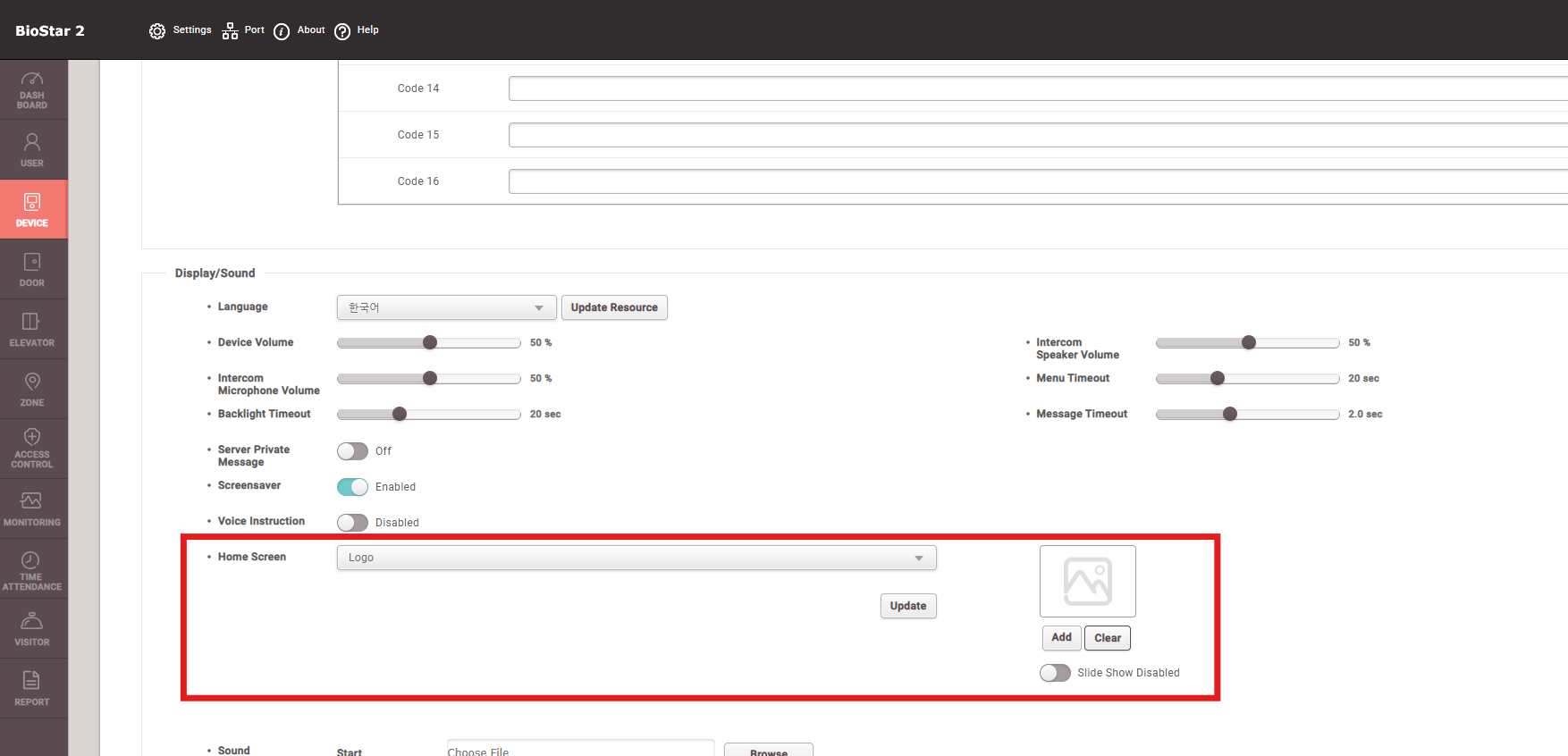
- Navigate to Device > Advanced > Display/Sound > Home Screen.
- Select Logo from the Home Screen drop-down list.
- Click Add to select an image.
- Click Update, then click Apply at the bottom of the page to apply the changes.
- To remove the currently applied image, click Clear.
Notice Configuration
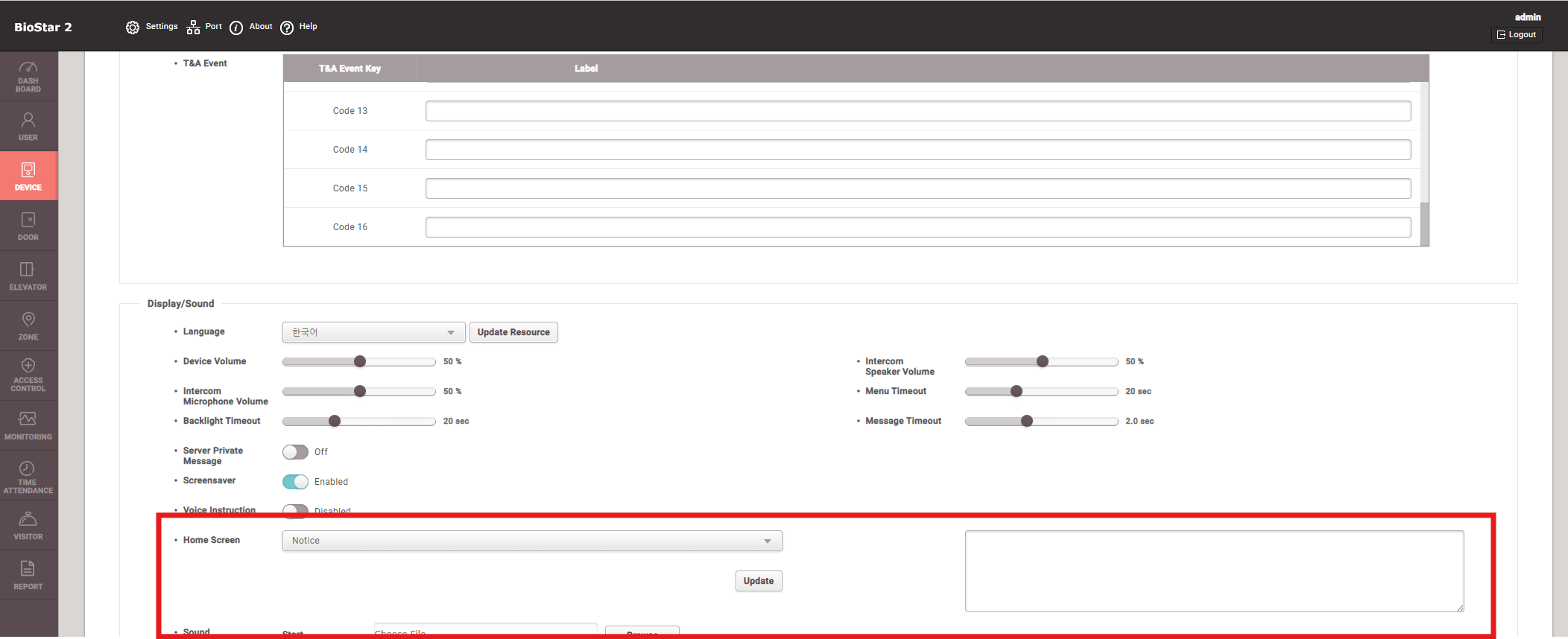
- Navigate to Device > Advanced > Display/Sound > Home Screen.
- Select Notice from the Home Screen drop-down list.
- Enter the text to be displayed.
- Click Update, then click Apply at the bottom of the page to apply the changes.