
I. Prerequisites
Before enabling Full Sync mode to use a Suprema device as a reader for a 3rd-party controller, ensure that the following prerequisites are fully completed.
Failure to meet these prerequisites may result in synchronization issues, authentication delays, or unexpected device behavior.
1. Factory Reset the Suprema Device
Perform a factory reset on the Suprema device.
Ensure the device returns to its default configuration state.
Verify that no previous configuration, user data, or access rules remain on the device.
2. Delete All Users from the Device
Confirm that all users are completely removed from the device.
The device must not contain any locally stored users prior to Full Sync operation.
3. Delete All Logs from the Device
Clear all authentication and event logs from the device.
Residual logs may cause unexpected sync behavior or performance issues during Full Sync.
Note:
* Full sync mode doesn't requrie Cloud link connection
* In Full Sync mode sync, all active cardholders are synchronized to to all devices regardless of AC rule
> Please verify in advance that the total number of active cardholders on the plugin server does not exceed the device’s maximum capacity.
II. Procedure
1. Enable Reader for 3rd-party controller option
Path: Config Tool _ Plugin _ Suprema Device Plugin _ Global Settings
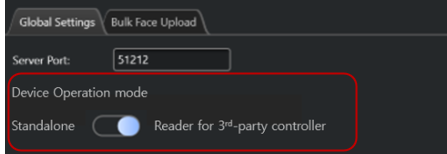
2. Create Access rule "SUPREMA_WHITELIST"
Path: Config Tool _ Access Control _ Access Rule
3. Assign the Access rule " SUPREMA_WHITELIST" to all cardholders
Path: Config Tool _ Access Control _ Cardholders and Cardholder groups
4. Click "Sync now" button
Path Config Tool _ Plugin _ Suprema Device Plugin _ Device sync information
* The function is not available yet in regular build.
Please use custom build "Release - Build 60 - Full Sync APB Off" to use Full sync feature without any delay
⚠️ Important: Converting from Normal Operation to Full Sync Mode
If the system is currently operating in Normal operation mode and needs to be converted to Full Sync mode, the following procedure is strongly recommended:
Delete the Suprema device entirely from the Genetec plugin
Re-apply all prerequisites listed above:
Factory reset the device
Delete all users
Delete all logs
Re-register the device in the plugin
Enable Full Sync mode during re-registration
Attempting to switch modes without re-registering the device may lead to inconsistent synchronization states and is not supported.